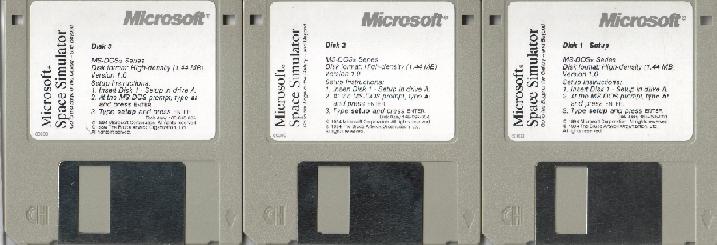
Some Tips On Running The SimulatorI won't attempt to get into telling you how to make a boot disk. I'm not even sure how any more myself. If you need to make a boot disk, and have never done it before, I recommend having someone who knows what they're doing do it for you. And for God's sake, make a back-up copy of both your config.sys and autoexec.bat BEFORE you go monkeying around with them! And please don't write me for advice on your particular computer. I barely know how to run my own, and giving advice by e-mail just doesn't work. I'm only putting these tips here to show you what I've done with several of my own computers to get the Space Simulator to run on them. You can try these tips, BUT DO SO AT YOUR OWN RISK!!! These things have never caused my computer any problems, but YOUR RESULTS MAY VARY!!! If you're not sure what you're doing, get someone who is sure to sit there with you.
* * * * * * * * * *
One note first on the sound. The Microsoft Space Simulator comes with sound options that you can select either during setup, or they can also be accessed through the menu in-game. Please take some time and explore the somewhat complicated menu system; there's lots of stuff to do there! You can either have music OR sound effects, but never both at the same time. And the sound effects are limited to ONE SINGLE SOUND. That being your engine sound. It is either on or off. If that is the only sound effect you can get, then you are doing good, because it is the only one in the game. Also, on the main drop-down menu in the upper-left corner, you will see a check-mark-type toggle. It will either say "Sound ON" or "Sound OFF". Now this had me messed up for years, so pay attention here: When it says "Sound OFF", it means that your sound is, in fact, ON. It just means to click there to turn it off. Likewise, if it says "Sound ON", then you'd better click it in order to turn it on, because it's currently OFF. To further complicate things, you may have to exit and re-start the sim in order for the Sound On/Off change to take effect. (This is only for sound--all other option changes take place immediately, and this rule may not apply to all computers--try it without the re-start first). It's such a simple thing, and yet it is one of the most misunderstood things that people ask me about. For years, I thought the sim was just incompatible with my sound card! Anyway, to test your sound effect, just hit the F8 key for full thrust, then F5 to cut thrust. BEFORE DOING ANY OF THE FOLLOWING, you will need to exit to DOS and get into your config.sys file. MAKE SURE you do not see the word NOEMS there. It would be right after where it says EMM386.EXE. If you see the word NOEMS there, you will need to edit your config.sys and remove that word. What that word does is disable your EMS, and the Spacesim NEEDS EMS to run! Most new computers seem to come with EMS disabled, which is normally okay since it is only needed for DOS, but for older DOS games, you need to have EMS enabled, which means removing the word NOEMS from your config.sys. Removing that word doesn't seem to affect anything, but remember exactly where it was in case you need to put it back for some reason. Better yet, make backups of both your config.sys and autoexec.bat, and print out copies while you're at it. It is always a good idea to have copies anyway! 1. Install the game. You can install it pretty much any way you want to; that part I've never had a problem with. 2. During installation, you should be prompted for set-up options. If not, you'll need to run SETUP from your SPACESIM prompt. 3. Something to keep in mind is that there are two EXE files that will run the game from the prompt. The one you should try first is typing (From the Spacesim prompt) SS1. If you get a memory error, try (Again from the Spacesim prompt) Spacesim. I'm not sure, but I think the Spacesim command runs it without sound. 4. Try running it first in a DOS window within Win95 or Win98. Remember to try both the SS1 command and the Spacesim command if the SS1 command doesn't work. 5. If that doesn't work, try exiting to DOS from Windows. Try both commands. 6. If that doesn't work, try a reboot, holding down the F8 key while booting to bring up the boot options screen. At that screen, choose the DOS only option (not safe mode), which will load DOS without any of the Windows drivers. Then, at the DOS prompt, type mouse to get your mouse going (usually works; not always), then go to your Spacesim directory and type Spacesim. I've found this works in most cases. If not, try the SS1 command. 7. Those are all the tips I know. If none of that works, you may need to make a boot disk. There is a boot-disk making utility built into the Spacesim program. Use it by running setup and at the end it will ask you if you want it to make a boot disk. 8. If anyone has something to add that I haven't covered, or would like to make a correction, please post it in the guestbook for all to see! I don't pretend to be a computer guru and would love to hear how other people have solved their Spacesim problems. The following is an email I recieved from Robert Janik 6-5-2000 describing how he solved his problems with his newer AGP video card, which had been causing a funny display. I too had this same problem (most of the ones I hear about involve the NVidia TNT chipset, but may apply to other newer cards as well). I'd say it's worth a try, but remember: try at your own risk! Here's his e-mail: Hi, I discovered a solution for running Space Simulator on a newer computers with AGP graphic card. Install the old graphic card to PCI slot (my was VIEWTOP 3D Vulcan). Reboot computer. Windows finds a new hardware and asks for driver. Install it. If both graphic drivers support multidisplay function, you can run Space Simulator on PCI card. But I read in Win help that MS-DOS window can work on primary display only. So you have to use PCI card as primary display. I had a problem, because my VIEWTOPs driver doesn't support multidisplay function. But I found a parameter "Initial display" in setup program with values "AGP" and "PCI". I choose PCI. After rebooting comuper with monitor pluged in PCI card. Windows began to use driver for PCI card. There was no conflict. I changed to AGP and ... no problem. NOW I AM IN SPACE SIMULATOR AGAIN. I tested some software, for example Microsoft Flight Simulator 2000, video editing software, video capture etc. and I didn't find difference in performance. Try it. Robert August 7, 2000 update. If you recieve the error message "Error loading 2D driver", that usually means your video card won't support the simulator at high-resolution. Try setting the resolution down a notch. I only get this message on my old 486, which has half a meg of memory on the graphics board. I think you need at least 1 or 2 megs to run it at higher resolutions.
Click here to return to page one. |